Guide
Netlify Custom Domain DNS Setup
Connect a Netlify site to a custom hostname, verify the active DNS record, and finish with a clean HTTPS rollout.
This guide is for teams publishing a static site, docs surface, or preview environment on Netlify with a custom hostname.
Netlify makes custom domains approachable, but the same rule still applies: the site must claim the hostname, DNS must point correctly, and HTTPS must complete for the exact host people will visit.
Pre-flight checklist
Before changing records, confirm:
- the Netlify site name
- the exact hostname you plan to connect
- whether Netlify DNS or external DNS is authoritative
- the DNS target shown in the Netlify UI
- whether the existing hostname is already indexed or linked elsewhere
If another provider currently serves the name, plan the cutover instead of stacking records.
Who this is for
Use this workflow when setting up:
docs.example.comfor documentationpreview.example.comfor stakeholder reviewhandbook.example.comfor a published knowledge basewww.example.comfor a static public site
1. Add the custom domain to the Netlify site
Start in Netlify and attach the custom domain to the correct site. For subdomains, external DNS often ends up with a CNAME record shaped like this:
Type: CNAME
Name: docs
Value: example-site.netlify.app
TTL: 300
Use the target shown by Netlify for your site. Do not guess from another project.
2. Check the authoritative answer
After saving DNS, check the hostname:
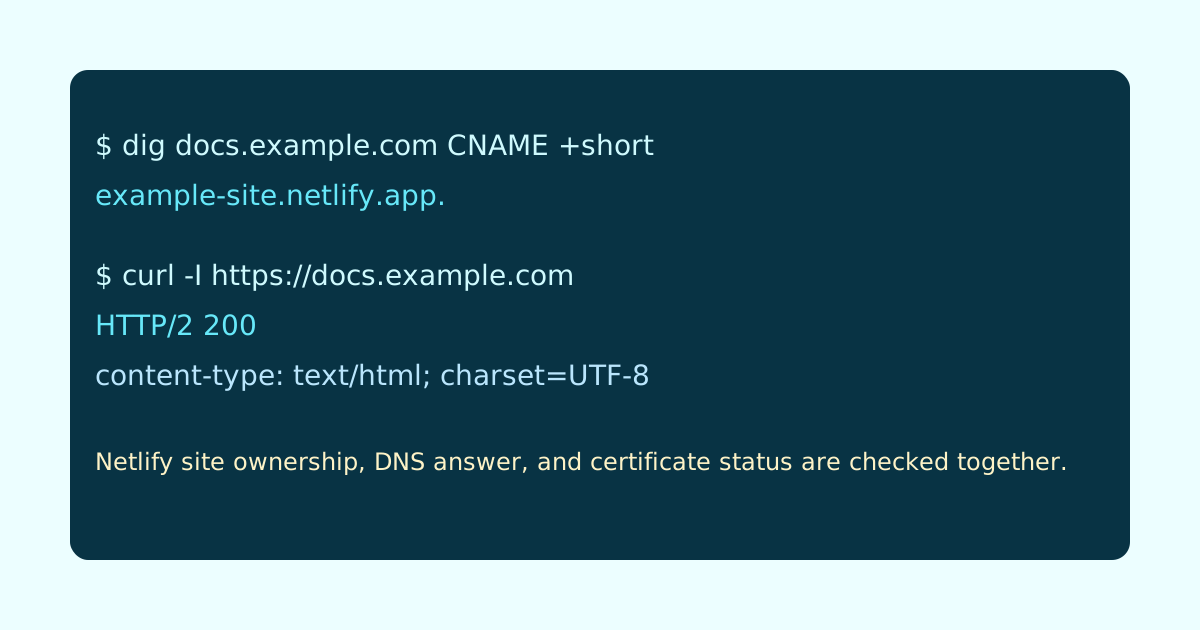
dig docs.example.com CNAME +shortExpected shape:
example-site.netlify.app.If the answer is empty, make sure you edited the active DNS provider. If the answer still points to an old platform, remove the old record before expecting Netlify to validate.
Field capture
This capture pattern pairs the DNS answer with the HTTPS response so the rollout has evidence beyond “it worked on my browser.”
3. Wait for HTTPS to complete
Once DNS validates, Netlify can provision HTTPS for the custom hostname.
Verify:
curl -I https://docs.example.comHealthy output should look like a successful HTTPS response from the deployed site:
HTTP/2 200
content-type: text/html; charset=UTF-8
Header casing and exact values vary by site configuration, so focus on the status, certificate, and final content.
Common failure cases
- The custom domain is attached to a different Netlify site.
- DNS was changed at an inactive provider.
- Apex-domain instructions were copied into a subdomain setup.
- HTTPS is still provisioning but the team keeps editing records.
- Canonical URLs still point at the
netlify.apppreview host.
Launch checklist
Before calling the custom domain ready, confirm:
- Netlify shows the domain as configured for the intended site
- public DNS returns the expected target
- HTTPS is valid in a fresh browser session
- redirects and canonical tags use the final host
- the old preview URL is not promoted as the public address
The cleanest Netlify custom-domain setup is one where the dashboard, DNS, and verification commands all agree without special explanation.
Manual review
Need a root-domain name reviewed?
and.guide reviews specific root-domain subdomain requests manually. Approval is limited, provisioning is never guaranteed, and honest project context matters more than speed.