Guide
Cloudflare Pages Custom Domain Setup
Connect a Cloudflare Pages project to a custom subdomain, verify DNS, and avoid the routing mistakes that make a working deployment look broken.
This guide is for teams that already have a Cloudflare Pages project and want a clean public hostname such as docs.example.com, preview.example.com, or handbook.example.com.
The mistake we see most often is creating DNS first and assuming Pages will automatically serve the hostname. DNS and Pages routing are separate checks. The DNS record can point at the right place while the Pages project still does not know it should answer for that host.
Before you start
Write down these details before changing anything:
- the exact hostname you want to publish
- the Pages project name
- whether the hostname is an apex name or a subdomain
- whether Cloudflare is already authoritative for the zone
- how you will verify DNS and HTTPS after the change
If the zone is already on Cloudflare, the setup is usually straightforward. If DNS is hosted elsewhere, expect one extra ownership or CNAME verification step.
Who this is for
Use this workflow when you are publishing:
- documentation on
docs.example.com - a public preview on
preview.example.com - a small app on
app.example.com - an internal handbook that is ready to become public
For and.guide request review, this is the kind of setup that reads well: the project has a clear hostname, a known destination, and a verification path.
1. Add the domain inside Cloudflare Pages
Start in the Pages project, not in the DNS table.
In Cloudflare Pages, add the custom domain you plan to use. For a subdomain, the final DNS shape usually looks like this:
Type: CNAME
Name: docs
Target: example-project.pages.dev
Proxy status: Proxied
TTL: Auto
The exact target should come from the Pages project, not from memory.
2. Verify the DNS answer
After saving the record, check that public resolvers can see the expected target.
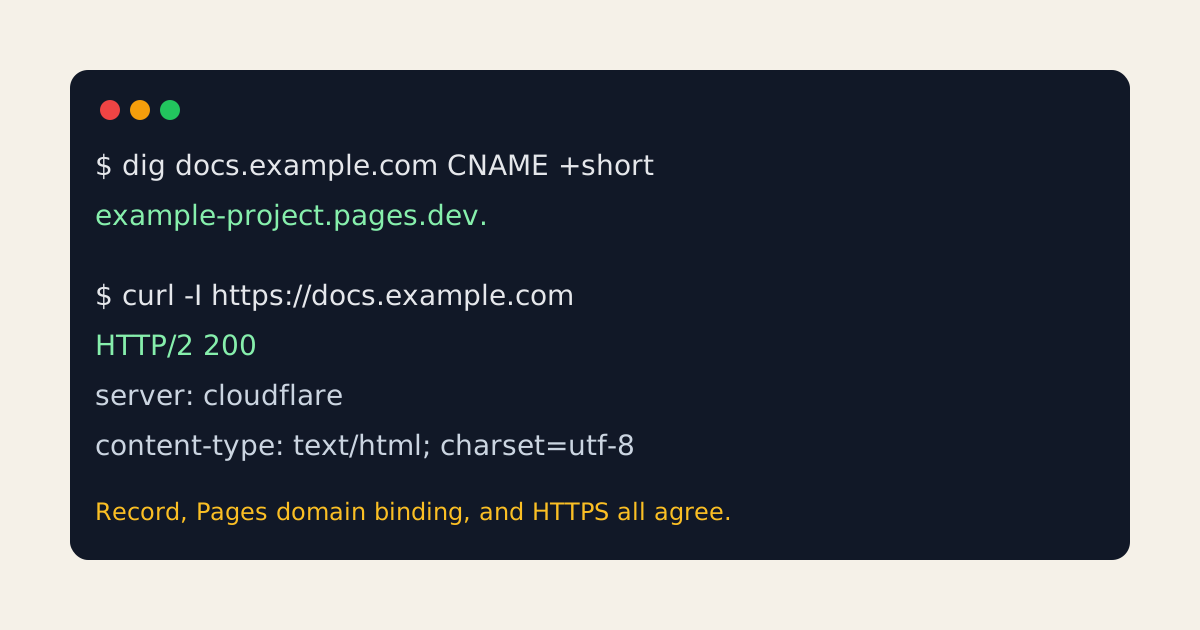
dig docs.example.com CNAME +shortExpected shape:
example-project.pages.dev.If the answer is empty, check whether the record exists in the authoritative zone. If the answer points at an old provider, remove the stale record before changing anything else.
Field capture
This is the type of verification capture we keep with a Pages custom-domain rollout: one DNS answer and one HTTPS header check.
3. Check that Pages serves the host
DNS only proves the hostname points somewhere. It does not prove the app accepts the host.
Run:
curl -I https://docs.example.comA healthy response usually starts like this:
HTTP/2 200
server: cloudflare
content-type: text/html; charset=utf-8
If you get a Cloudflare error, a redirect loop, or a certificate warning, inspect the Pages custom domain status before editing DNS again.
Common failure cases
- The CNAME exists, but the domain was never added to the Pages project.
- A stale A record conflicts with the new CNAME plan.
- The hostname is added to the wrong Pages project.
- The browser is testing an old cached HTTPS failure.
- The apex domain needs a different setup than a normal subdomain.
Launch checklist
Before sharing the URL publicly, confirm:
digreturns the intended Pages targetcurl -Ireturns a successful HTTPS response- the browser shows a valid certificate for the exact hostname
- canonical links and redirects use the final hostname
- the old preview URL is no longer the primary link in docs
For review purposes, the important signal is not that Cloudflare Pages was used. The important signal is that the public hostname has a clear owner, a working destination, and a verification trail.
Manual review
Need a root-domain name reviewed?
and.guide reviews specific root-domain subdomain requests manually. Approval is limited, provisioning is never guaranteed, and honest project context matters more than speed.