Guide
Vercel Custom Domain DNS Setup
Point a Vercel project at a custom domain without confusing DNS ownership, project routing, HTTPS issuance, and redirect behavior.
This guide is for teams using Vercel for a frontend, docs site, or preview app that should live behind a stable hostname.
The operational trap is familiar: someone adds a DNS record, waits, and then calls the domain broken because Vercel still shows a warning. Vercel needs both sides of the contract: the project must know the domain, and DNS must point to the value Vercel expects.
Pre-flight checklist
Before changing DNS, confirm:
- which Vercel project should own the hostname
- whether the hostname is apex,
www, or a specific subdomain - whether another provider currently serves that name
- what Vercel shows as the required DNS value
- whether redirects should prefer apex or
www
This avoids the common mistake of creating a technically valid DNS record for the wrong project.
Who this is for
Use this guide when publishing:
app.example.comfor a production frontendpreview.example.comfor a stable preview surfacedocs.example.comfor generated documentationwww.example.comfor a marketing or product page
1. Add the domain in Vercel first
Open the Vercel project and add the exact domain. Use the DNS values shown there as the source of truth.
For many subdomain setups, the record shape is:
Type: CNAME
Name: app
Value: cname.vercel-dns.com
TTL: 300
For apex domains, Vercel may show a different record shape. Do not reuse the subdomain pattern blindly.
2. Verify DNS from outside your laptop
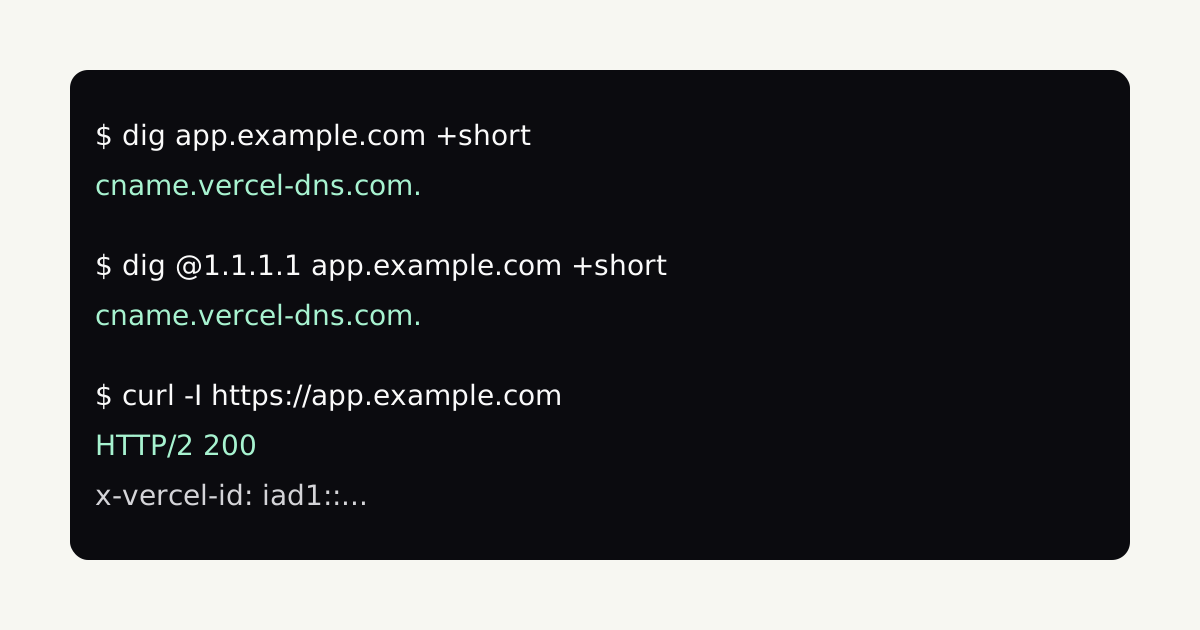
Check the hostname directly:
dig app.example.com +shortExpected shape for a CNAME setup:
cname.vercel-dns.com.Then check through a public resolver:
dig @1.1.1.1 app.example.com +short
dig @8.8.8.8 app.example.com +short
If the answers differ, you may simply be seeing cache timing. If both still point at the old provider, the authoritative record is not updated.
Field capture
For Vercel rollouts, keep the dashboard-required value and the resolver answer together so later debugging does not turn into guesswork.
3. Confirm HTTPS and project routing
Once DNS is correct, test the public host:
curl -I https://app.example.comA healthy Vercel response often includes headers such as:
HTTP/2 200
server: Vercel
x-vercel-id: ...
Header names can change, so do not rely on one header as the only proof. The more important checks are: HTTPS is valid, the content is the expected project, and redirects land on the intended canonical hostname.
Common failure cases
- The DNS record points at Vercel, but the domain is attached to a different Vercel project.
- The apex and
wwwdomains disagree about which one is canonical. - A previous provider still has an A or CNAME record in the active zone.
- The browser caches an older certificate or redirect result.
- The team tests only the deployment preview URL and forgets the custom host.
Launch checklist
Before calling the migration done, confirm:
- Vercel shows the domain as valid
- public DNS returns the expected Vercel target
- HTTPS is valid for the exact hostname
- redirect preference is intentional
- Search Console, analytics, and internal links use the final host
A good Vercel DNS setup is quiet. It does not depend on someone remembering which dashboard was edited last; the project, DNS records, and verification commands all tell the same story.
Manual review
Need a root-domain name reviewed?
and.guide reviews specific root-domain subdomain requests manually. Approval is limited, provisioning is never guaranteed, and honest project context matters more than speed.